
GLB or STL: which 3D file should you download?
 Input image
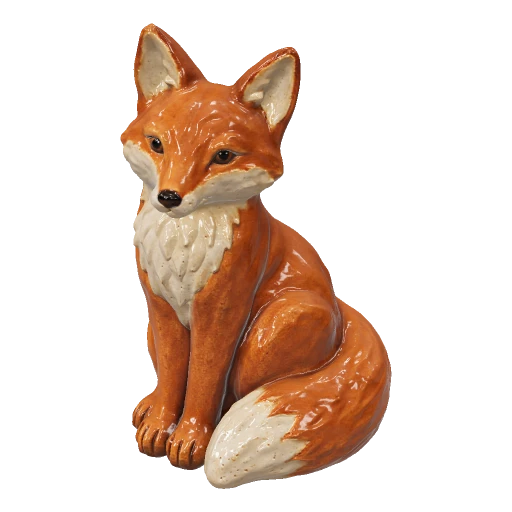 3D model
Imagine sending the ceramic fox to two people. An illustrator wants to spin it around and study the cream glaze on its chest. A print maker wants to see how the ears and tail will slice. They need different parts of the same model.
Download GLB to keep the appearance
For our textured examples, the GLB contains the mesh and the material information used in the browser preview. Use it to share the fox’s markings or bring the textured object into a compatible editor. Open the fox example, rotate the model, then download the GLB and compare its appearance in your destination viewer. Lighting can change how glossy the glaze looks.
Choose STL when your next stop is a slicer
In Studio, a supported GLB result can also be exported as an STL surface mesh. Expect the cream and russet regions to appear as one material. Inspect the ears at the size you actually intend to print: a detail that looks substantial on a large monitor can become very thin on a small figurine.
Inspect a slice before starting a print
Check the imported dimensions and orientation first. Look for islands, gaps, thin walls and parts that start in midair. On a seated fox, inspect the join between the tail and body and the contact area under the feet. Keep the GLB as your textured master and save the print preparation separately so that a change in scale or supports is easy to revisit.